Tutorial · 7 min read
How to crop an image online: shapes, pen tool and exact ratios
Pick the right crop shape, place it precisely and download at full resolution — including free-hand cropping with the pen tool and exact aspect ratios.
Most image work is not a full design job. It is one small, urgent task: crop the product out of a busy photo, trim a screenshot for a slide, get a headshot into a circle. Magic Crop is the ImgFixel tool built for exactly that moment — a crop tool that gives you real control over the shape and position of the crop instead of a single fixed rectangle.
What is Magic Crop?
Magic Crop is a browser-based crop tool. You upload an image, choose a crop shape or draw your own outline, place it exactly where you want it, and download the cropped result at the resolution you started with. There is no upload to a server, no queue and no account needed to try it.
The difference from a basic cropper is control. Instead of dragging one rectangle, you can pick from a library of shapes, keep a locked aspect ratio, rotate the crop, edit individual points and undo any step along the way.
How Magic Crop works
Everything runs locally through the browser canvas. Your crop is applied to the full-size image and trimmed to the bounding box of the shape you placed — so you get a tight file at source resolution, not a downscaled preview.
- Rectangle and square — the fastest option for packshots, screenshots, banners and thumbnails.
- Shape library — over 60 shapes including circles, ovals, stars, arrows and badges for avatars and highlights.
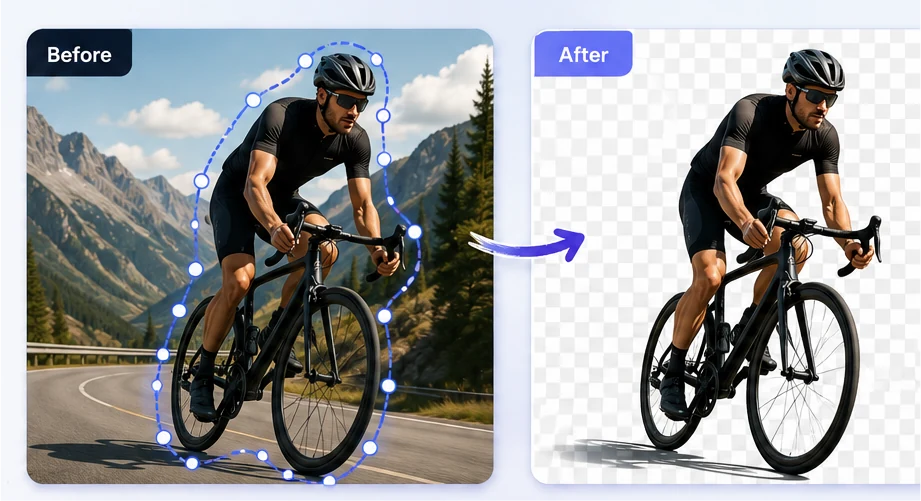
- Pen tool — click point to point to draw your own outline around an irregular subject.
- Manual adjustment — move, resize, rotate and snap the crop, edit points, add anchors, undo and redo.
Because processing is local, a typical crop finishes in about 10 seconds — most of which is you placing the shape, not the tool thinking.
Step-by-step tutorial
- Open Magic Crop and drop in a JPG, PNG or WebP. The image loads at full resolution.
- Choose your crop shape: rectangle, square, one of the 60+ shapes, or the pen tool for a custom outline.
- Place the crop. Drag to move it, use the handles to resize, and rotate it if the subject sits at an angle.
- Lock an aspect ratio if the result has to match a specific format.
- Refine the outline. Edit individual points or add anchors; every change can be undone.
- Review the crop against the original before you commit.
- Download the cropped image, or keep adjusting if the framing is not right yet.
Professional use cases
Ecommerce
Marketplace listings want products framed consistently. Crop each shot to the same ratio so a whole catalogue looks like it was photographed in one session.
Freelancers and agencies
Client assets arrive as whatever the client had. A crop tool that runs in the browser means you can turn a phone photo into a usable asset during the call, and nothing sensitive is sent to a third-party server.
Social media
Feed and story design lives on tight framing. Crop the subject once at the right ratio and reuse it across a whole content calendar.
Flyers, posters and packaging need artwork cropped to a fixed frame. Cropping at original resolution keeps the file sharp at print sizes.
Profile pictures
Circle and square crops make clean avatars for team pages, author bios and social profiles without opening a design app.
Before and after
The example above is a single source photo. On the left is the original frame with the crop outline drawn around the rider and bike. On the right is the downloaded result — the same pixels at the same resolution, trimmed to the outline.
Conclusion
Magic Crop replaces the slowest part of everyday image work with a ten-second task you can do in a browser tab. Start free, then pair it with Smart Resizer when you need that cropped image in every platform size.
Frequently asked questions
Yes. Without an account you can download 10 crops per calendar month, and 50 per month once you sign in. Pro is $10 per month for unlimited downloads.