Workflow · 7 min read
Social media image sizes, and how to resize one design for all of them
Instagram, Facebook, LinkedIn, Pinterest, YouTube and print sizes in one reference — with the workflow that stops you rebuilding the same artwork six times.
A campaign is rarely one image. The same poster has to work as a feed post, a story, a thumbnail, a banner and something printable. Rebuilding that artwork by hand in every canvas size is the least creative part of the job, and it is where most of the time goes. Smart Resizer is the ImgFixel tool being built to remove it.
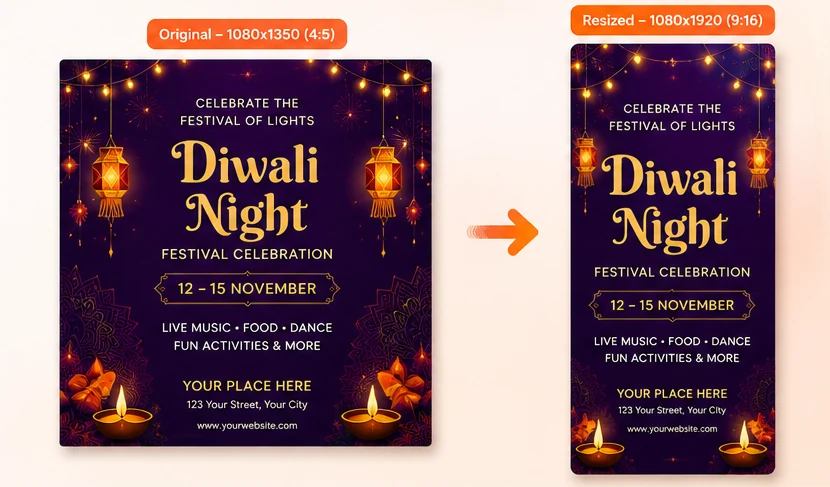
The platform sizes that actually matter
- Portrait post — 1080 × 1350 (4:5), the highest-reach feed format.
- Story and Reels cover — 1080 × 1920 (9:16).
- Square post — 1080 × 1080 (1:1) for grid consistency.
- Feed image — 1200 × 1500 for mobile-first vertical reach.
- Page cover — 1640 × 924.
- Ad creative — 1080 × 1080 square, the safest single ad size.
- Post image — 1200 × 1200.
- Company banner — 1584 × 396.
- Document cover — 1200 × 1500.
- Standard pin — 1000 × 1500 (2:3).
- Long pin — 1000 × 2100 for step-by-step content.
YouTube
- Thumbnail — 1280 × 720.
- Channel art — 2560 × 1440 with a 1546 × 423 safe area.
- Business card — 3.5 × 2 in with a 3 mm bleed.
- Flyer — A5 or US Letter.
- Poster — A3 and A2 for events and retail.
- Banner — 6 × 3 ft and 8 × 4 ft for stands and storefronts.
How Smart Resizer saves time
The slow part of resizing is not the resize. It is deciding what happens when the aspect ratio changes: what stays visible, where the headline goes, whether the logo is still readable. Smart Resizer fits your design into each new canvas by default, so nothing is cut off — and you can move, scale or crop it yourself when you want a tighter frame.
One poster exported to nine sizes by hand is roughly an hour of canvas work. The same set as a preset batch is a single export step.
The workflow
- Finish the design once, at the highest resolution you need — usually the print or poster size.
- Upload it to Smart Resizer.
- Select the sizes for this campaign: social, web, print presets, or your own custom dimensions in px, in, cm or mm.
- Check each result — everything is fitted by default, and you can reposition, scale or crop it by hand.
- Export the batch and hand the folder to whoever schedules the campaign.
Professional examples
A festival poster becomes a 4:5 announcement post, a 9:16 countdown story, a 16:9 YouTube cover and an A3 print sheet. A product launch key visual becomes a square ad, a LinkedIn banner and a 2:3 pin. A restaurant menu photo becomes a story, a feed post and a table-top flyer. Same artwork, same brand, five minutes instead of an afternoon.
Conclusion
Smart Resizer covers the preset list above plus any custom size you type in. Magic Crop handles the other half of the job — cropping the image you are about to place into all of those sizes.
Frequently asked questions
Yes. Alongside the platform presets you can type any width and height in pixels, inches, centimetres or millimetres with your own DPI.